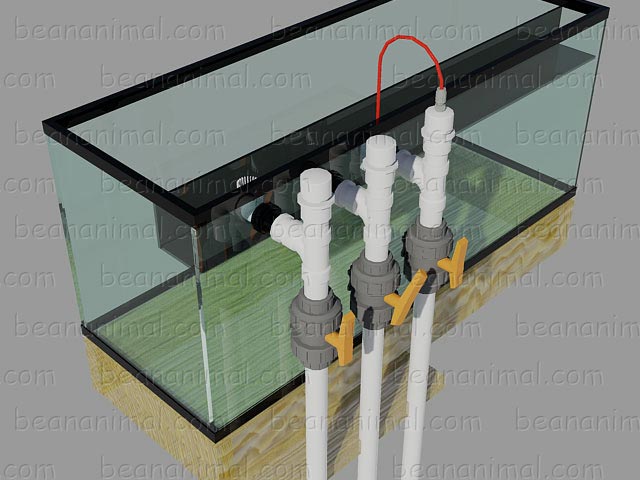
BeanAnimal's Bar and Grille - Project Feedshttp://beananimal.comumbraco 2.1.6My descriptionenAutomated RO/DI Water Filtration System - part 3http://beananimal.com/projects/automated-rodi-water-filtration-system---part-3.aspx@updateDatehttp://beananimal.com/projects/automated-rodi-water-filtration-system---part-3.aspxpart - 3 flow transducer hardware

There are several different types of flow transducers that can be used to measure the volume and/or rate of flow through a piping system. One of the most common (and inexpensive) types is the paddle wheel sensor (transducer). The fluid to be measured (water in this case) flows through the sensor and is directed past a paddle wheel. The paddle wheel rotates past a tiny hall effect sensor embedded in the sensor case. The hall effect sensor creates a small electrical pulse as each paddle edge passes. The volume of flow can be easily calculated by simply totaling the number of pulses. Because each vane (edge) of the paddle creates an electrical  pulse, even at low flows there are multiple pulses per second. In most cases the hall effect style flow sensors are very linear within their designated range of flows. 

Hall Effect Flow Sensor Animation

 The hall effect models generate a pulse each time one of the vanes passes the hall effect sensor. Multiple pulses are generated per single rotation of the paddle wheel.

Because there are multiple pulses per rotation, and the sensor is linear with regard to the number of pulses per volume, regardless of the flow rate, the sensor is very easy to interface to the microcontroller. Total volume of flow can be calculated by simply counting the total number of pulses over a short period of time.

A typical low cost hall effect flow sensor used in high end coffee and soda machines costs $40 - $100 dollars and my project calls for (2); Ouch!


HM Digital FMS-2 Flow Sensor

HM Digital FMS-2 Flow SensorWhile searching for TDS sensors I happened upon the super low cost FMS-2 flow transducer made by HM Digital. At $15 each, the FMS-2 appeared to be exactly what I was looking for so I ordered a handful to play with. The design of this paddle wheel flow sensor is slightly different than most of the other paddle wheel flow sensors. One vane of the paddle is equipped with a tiny magnet and the case has a tiny reed switch embedded in the plastic. With each full rotation of the paddle, the reed switch is actuated (closed) momentarily and then allowed to open back up. This results in 1 pulse per rotation. The inexpensive FMS-2 flow sensor is also not linear with respect to the number of pulses per volume and in fact the pulse rate varies greatly over the range of flows that the sensor can measure.

Reed Switch Flow Sensor Animation

The FMS-2 generates a single pulse per revolution of the paddle wheel. The pulse is the result of a magnet attached to one of the vanes passing a reed switch embedded in the sensor's case. 

Because there is only a single pulses per rotation, and the sensor is not linear with regard to the number of pulses per volume, depending on flow rate, the sensor is somewhat complicated to interface to the microcontroller. Total volume of flow is calculated by measuring the frequency of the pulses, not the number of pulses. A mathematical equation is used to convert the frequency into a flow rate. With only a single pulse per revolution, low flow rates would take extremely long sampling times (many seconds) to be accurate to enough decimal places. The problem is that the actual flow rate can easily change during the sampling period! The only viable choice for this type of sensor is to measure the elapsed time between the rising (or falling) edge of EACH pulse and extrapolate that to a frequency.

The FMS-2 datasheet provided very little detail and was of little help so I had to set out on my own to fill in the gaps. The datasheet provided a simple frequency to flowrate conversion table as follows:

Frequency
(Hz)

   Flow Rate
(l/min)

       1.80            0.3
       2.85            0.4
       3.90            0.5
       4.95            0.6
       6.00            0.7
       7.05            0.8
       8.10            0.9
       9.15            1.0
      11.25            1.2
      13.35            1.4
      14.40            1.6
      17.55            1.8
      19.65            2.0

I was able use the table to work backwards and derive the equation used to create it. It sure would have been nice if the HM Digital folks had just provided the equation to begin with.

The flow equation:

FMS-2 Frequency to Flow Equation 

Can be simplified to:
FMS-2 Frequency to Flow Equation Simplified

While there is a slight loss of precision in the simplified equation, it will be more accurate than needed for the intended purpose. Furthermore, a single divide (as opposed to the two divides) will help save clock cycles in the microcontroller code. Actually, the simplified version is only two mathematical operations compared to 4 in the unsimplified version. BASCOM-AVR only allows for 1 instruction per line of code, so the net savings are rather substantial when working with limited clock time and program memory.


Frequency From Elapsed Time

There are many ways to measure frequency using an AVR microcontroller and I toyed with several options, one of them being interrupt driven timers and counters that would be set each time a pulse from the FMS-2 sensor was detected. In practice this worked, but would have required the use of several of the scarce AVR interrupt timers and I/O pins. Instead of an interrupt based frequency counter, I decided to use polling. Quite simply the software checks the state of the I/O pins once every 500μs (500 microseconds). Polling at that relatively slow (500μs) rate still allows plenty of processing time for the other functions of the RO/DI automation controller while still allowing for very little error at the expected flow rates.

The elapsed time to frequency conversion is straight forward. The elapsed time is recorded in 500μs ticks ( 0.0005 seconds per tick). That means there are 2000 ticks per second. 1 Hz = 2000 ticks, or 1 revolution per second. The simplified equation looks like this:
Ticks To Frequency Equation    


BASCOM-AVR Code

The BASCOM-AVR code for reading the HM Digital FMS-2 flow sensor is straight forward. One leg of the sensor is hooked to 0V (ground) and the other to an INPUT pin on the microcontroller. The input pin is pulled HIGH via PULLUP RESISTORS. Each time the reed switch is pulled closed by the magnet, the INPUT pin is pulled to LOW (0V, GROUND) LOGIC. 

The code simply looks for changes in the state of the INPUT pin that the sensor is connected to, it does this once every 0.0005 seconds. If the state is LOW then a pulse has occurred, if not a counter variable is incremented. Each time a pulse (LOW LOGIC in the pun) is detected, the elapsed time (recorded in the counter variable) since the previous pulse is stored and the counter variable is reset. Once per second, the stored value is used to calculate the instantaneous flow rate through the sensor. The flow rate is calculated by converting the elapsed time into a frequency.  

I need to clarify something very important regarding the theory as explained above, and the actual CODE presented below. In the animation above, the reed switch is CLOSED momentarily once per rotation, pulling the LOGIC HIGH to 5V. A perfectly square wave form is depicted in the picture. In the real world, when the reed switch closes, it will bounce several times, creating a jagged rising edge. This is known as "switch bounce" and can cause false readings. There is usually much less bounce when a switch is OPENED. Also, many microcontroller INPUT pins work better when they are pulled to a HIGH LOGIC (5V) and wait to sense LOW LOGIC (0V). For this reason the INPUT PIN for the FMS-2 is pulled HIGH on the ATMEGA128 microcontroller and tied to one leg of the FMS-2 flow sensor. The other leg of the flow sensor is tied to GROUND. Each time the reed switch closes, the INPUT pin of the ATMEGA128 is pulled to LOW LOGIC (0V, ground). In other words, the momentary pulses are 0V and the rest of the time the microcontroller reads 5V on the input pin. Keep this in mind when reading the BASCOM-AVR code.  

BASCOM-AVR FMS-2 Sensor Code

Click on the image above to see the BASCOM-AVR code for reading the HM Digital FMS-2 flow sensor. For the sake of brevity and space, variable declarations and compiler directives are not included in the code snippet.

That concludes the HM Digital FMS-2 flow sensor overview. In Automated RO/DI Water Filtration System - part 4 we will look at the code and electronics for the HM Digital TDS sensor.

]]>
Automated RO/DI Water Filtration System - part 2http://beananimal.com/projects/automated-rodi-water-filtration-system---part-2.aspx@updateDatehttp://beananimal.com/projects/automated-rodi-water-filtration-system---part-2.aspxpart 2 - software overview

In this installment I will present an overview of the software used in the RO/DI automation project. Before we dive into how the system operates and makes decisions, we need to get some of the important but gory details of embedded systems programming out of the way. The foundation of the RO/DI automation controller is what programmers often call a "game loop". In other words the entire program is an endless code loop that processes inputs and outputs each time it is executed. With each pass of the loop, variables are checked and acted upon accordingly by the program. At the end of the loop, the microntroller jumps the beginning of the loop and executes it again. This happens hundreds (or thousands) of times a second, based on the speed of the microprocessor executing the loop and the complexity of the instructions in the loop.

To make matters a bit more confusing, the program also has to respond to interrupts. An interrupt tells the software to temporarily stop what it is doing and do something else. The RO/DI automation controller has several type of interrupts that it must respond to, most of them based on time. The game loop runs far too fast to check sensors and update the LCD with each pass, so we use timers (built into the microcontroller) to cause interrupts at preset intervals. For the most part, the timer interrupts do not do any real work and instead set flags that are read in the main game loop and acted on when needed. 

To provide more detail would certainly result in a failed attempt at teaching microcontroller and programming basics, so without further bumbling I will present an overview of the RO/DI automation firmware (software) that runs on the microcontroller.


The Game Loop 

RoDiLogix Game Loop DiagramThe foundation of the RO/DI automation controller is the infinite processing loop (game loop) that processes the data acquired from user, sensor and timer inputs. By processing the data, the logic embedded in the game loop can set the various system and menu states needed to control the outputs (both physical and display).

When the program starts, initial variables are read from EEPROM storage and the program is initialized. The program then goes into the infinite game loop. On each pass through the game loop, the program checks for flow readings from the flow sensors, pressure readings and TDS readings. It then checks for changes in menu state (triggered by encoder rotation or button press) and performs housekeeping duties. System and menu state changes are acted upon to change the operating mode of the system and provide user feedback. Once the tasks are completed, the loop starts over. The menu and system states will be described in detail below.


Interrupt Routines  

In general; An embedded timer will fire an interrupt every 0.0005 seconds (.5 milliseconds). The game loop temporarily passes control to the interrupt routine. The interrupt routine will check the state of the reed switch embedded in the flow sensors (more on those later). If a change in state is detected, then a flag is set. At the next change of state, the flag is cleared and the elapsed time is stored for later use. Furthermore, every 0.5 seconds the system time and date variables are updated from the RTC (Real Time Clock) chip. Lastly, every second a housekeeping flag is set. At this point the program returns to wherever in the game loop it left off.

Rotation of the Encoder or a button press will also fire an interrupt that simply sets a flag indicating that encoder rotation or a button press has occurred. Control is then passed back to the game loop where the actual event can be processed according to the current system and menu state.
Click on the RO/DI Automation Game Loop Diagram to see it full screen. If the image does not display correctly in your browser, you can open a PDF version here.


LCD Display and Menu State Machine

The primary user interface to the RO/DI automation system is an optical rotary encoder equipped with a button and a 4x20 backlit LCD screen. When the encoder is rotated or a button press is detected, the menu state machine sets a new state based on the current state. This is done via a SELECT CASE statement. Each pass of the program loop looks for changes in menu state and acts upon them during execution of the loop. The menu system does not directly control the FUNCTIONAL STATE of the RO/DI automation system, but rather sets flags and variables that are acted upon by the state machine that controls the physical function of the system. It may be more helpful to simply study the LCD menu state diagram below. Each box on the diagram represents an individual menu state. Each individual menu state has an associated LCD display screen and reacts appropriately to button and encoder input.

LCD Menu Finite State Machine

Click on the image to see the full size LCD Menu State Machine diagram. If your monitor is unable to display the image in the proper resolution, you can view it as a PDF file by clicking here. The diagram shows all of the possible menu states and user input interactions for the LCD user interface.


TCP/IP (http) Menu State Machine

The webserver functionality is derived from a Wiznet wiz810mj ethernet module. I struggled with TCP/IP programming but with the help of Ben Zijlstra and his Wiznet examples, I have been able to create a basic webserver for the RO/DI automation project. I will post the details here once they are worked out. At this point, the project is serving a basic HTML page with a few controls on it. Because each page has to be created in HTML and then ported to BASCOM-AVR, the process is time consuming. Debugging take a long time, as each revision means a re-flash of the Atnega128 microcontroller.


RS-232 Menu State Machine

The RO/DI automation controller is equipped with a serial port that can be connected to a PC running standard terminal emulation software. The settings are standard 8-n-1, 19200. A menu driven command prompt allows the user to monitor and manipulate the controller in real time. Input is buffered as it comes in and is processed in each cycle of the game loop. I struggled with the decision to use menus or a simple command language and may change my mind as the project progresses. While the menu system makes user input easy, it takes much more code to process the states. I do not have a menu state diagram from the serial menu system, as it is not finished. 


Functional State Machine (operating modes)

The functional state machine is responsible for opening and closing the solenoid valves and setting the next state. The physical state of the RO/DI automation controller is determined (by the functional state machine) by processing system variables that are set via the other menu state machines, timers and sensor inputs. The state of the system is updated once per second as part of the housekeeping routine in the main game loop.

RoDiLogiX Functional State Machine Diagram  

Click on the image to see the full size RO/DI automation controller Functional State Machine. If the image does not display properly in your browser, you can view it in PDF format here.


Software Development Platform

The software was developed using the BASCOM-AVR development environment from Mark Alberts at MCS Electronics. BASCOM-AVR is a BASIC language IDE and compiler for AVR microcontrollers. I am very comfortable programming in BASIC and not a fan of C or the "arduino" platform. The BASCOM compiler allows the use of the BASIC language as well as ASM code to leverage the AVR and is every bit (if not more) capable than any other AVR development platform or.

The flow charts and finite state machine diagrams were built using Microsoft Visio. Using a tool such as Visio makes mapping out the program flow more intuitive and logic errors can easily be avoided before the first line of code has written.

I use several different software packages for schematic capture, simulation and PCB design. I am not a fan of Eagle PCB, even thought it is the most cost effective package for hobby users. The PROTUES product line from LABCENTER Electronics is a wonderful package. The ISIS schematic capture software is very well suited to hobby electronics and is extremely easy to use. Where the PROTEUS suite shines is in the fact that the ISIS schematic capture and ISIS VSMcircuit simulation are fully compatible with AVR (and PIC, ARM, STAMP, 8051, etc) microcontrollers! You read that correctly, the product not only simulates the electronics, but also simulates the microcontroller with YOUR code! The product is a MUST HAVE for any serious μC hobbyist. I currently am not using the PROTEUS ARES PCB layout package. It is very well endowed, but I am used to the Altium (Formerly Protel) product, to which I have access through a friend in the PCB industry. I am eager to make the switch, but have not had the time to sit down and learn the new PCB software.    

That concludes the software overview. In Automated RO/DI Water Filtration System - part 3 we will look at the code and electronics for the flow sensor.

]]>